OFFICIAL MANUAL / GETTING STARTED
Shadowrocket Getting Started
Follow five steps to get started: add, choose a mode, connect, verify, and troubleshoot. First establish a connection you can test, then adjust rules and automatic connection settings as needed.
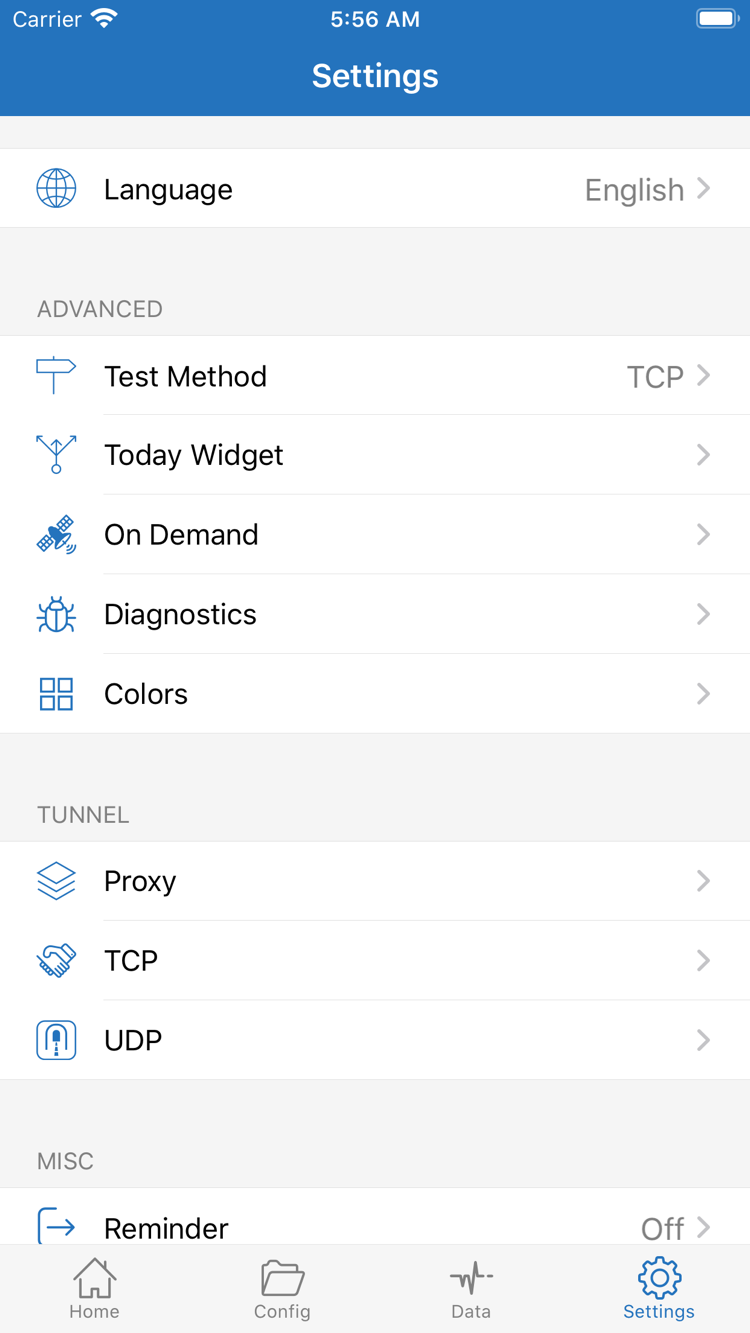
These steps focus on iPhone and iPad. Gather your details first, then work through the steps in order; you don't need to explore every setting on your first use. Official screenshots help identify screens and fields, but layouts may vary by device and app updates. Refer to the English interface labels shown in your current app. The fields shown in a screenshot are not a fixed form required by every protocol.
Think of server details, a subscription URL, and a configuration file as three separate things. Server details contain the address and authentication needed for a connection. A subscription imports and updates a group of server entries. A configuration file in Config controls behavior such as routing. Importing servers from a subscription does not mean a suitable routing configuration is already selected.
STEP 01 / ADD SERVER
Add a Server or Import an Existing Subscription
Choose the import method that matches the details you already have. After saving, check the entry under SERVER.
Enter Details Manually in Add Server
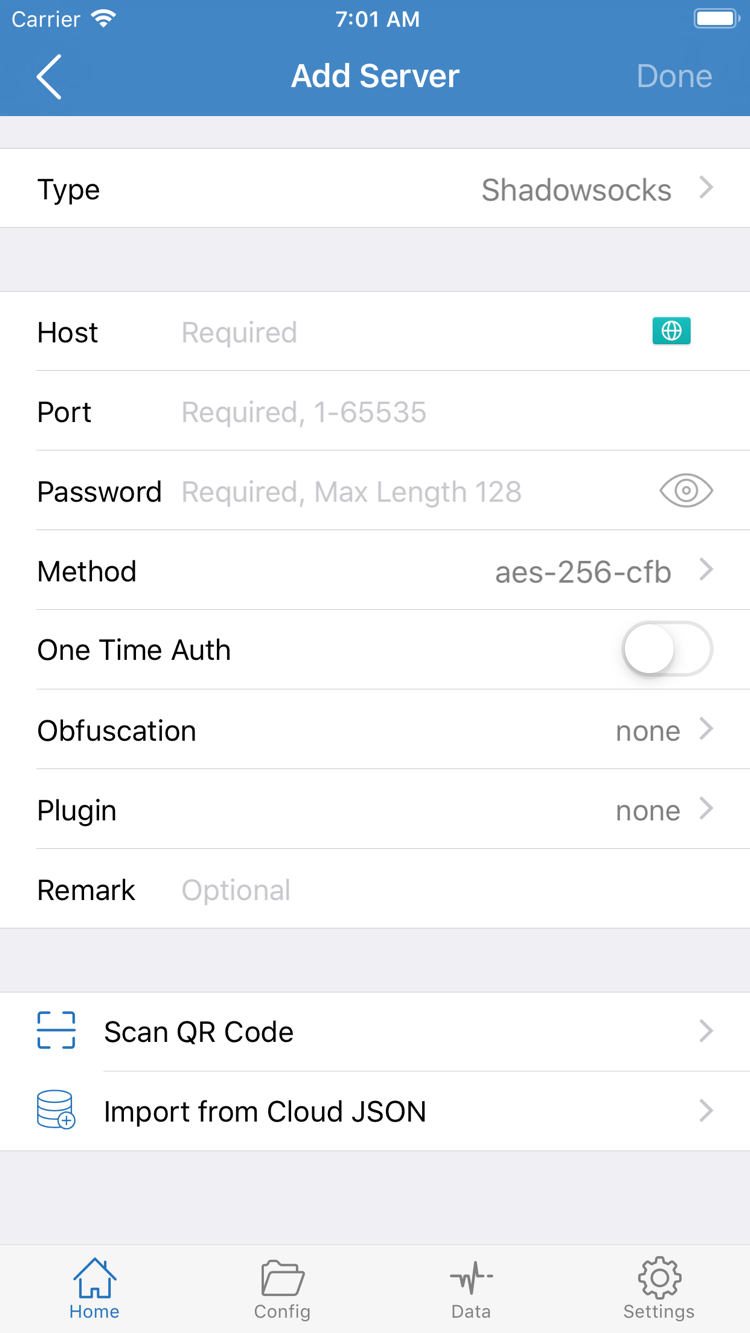
Open Shadowrocket, go to Home, and find Add Server in the SERVER section. If your current layout has an add button at the top, you can use it to open the add screen. Tap Type first and select the protocol that matches your existing details, then fill in the remaining fields. Type determines which authentication and transport options appear, so don't choose an option just because it looks familiar.
Enter the server hostname or IP address in Host and the port number in Port. Password, Method, and other authentication fields depend on the selected Type. For example, with Shadowsocks, Method and Password must match the server configuration. For other protocols, check the details provided for that protocol. Don't paste an entire share link into Host or include a web path in a field that accepts only a hostname.
If your details include parameters such as TLS, a server name, or a transport path, enter each one in the corresponding field. The connection address and the name used for certificate validation may differ; don't change either just to make them match. If a field is unclear, check the setup information for your existing service. Avoid guessing repeatedly or disabling certificate validation to try to connect.
Import a Subscription with Subscribe
If you have a subscription link, select Subscribe under Type in Add Server, then enter the full subscription URL in URL. You can add a note to identify the entry, then save and wait for it to finish loading. Check that the URL is complete, including the beginning, end, and query parameters. Make sure messaging apps or documents haven't inserted spaces or line breaks, or copied only the displayed text instead of the actual address.
Subscription URLs often contain access credentials and should be protected like passwords. This guide doesn't need your real URL; don't post the full address in public comments, screenshots, or diagnostic logs. After the subscription loads, return to Home and check that the expected entries appear under SERVER. If you see a subscription name but no servers, check the update result before adding the same subscription again.
If You Have a Share Link or QR Code
A single share link and a subscription are different types of information. A share link usually describes one server, while a subscription retrieves a group of entries that can be updated. Use the import option for the link type in the app, or tap Scan QR Code in Add Server to scan your own QR code; make sure you trust its source first. Import from Cloud JSON is only for JSON data you actually have, not a general-purpose way to import any link.
Whichever method you use, return to Home, select a server you intend to use, and reopen its details to check Type, Host, and Port. Selecting an entry determines which one the next connection will use; it doesn't prove the server is available. Next, set Global Routing. Don't infer the actual connection result from a server name or location note. See the protocol reference for an explanation of protocol fields.
STEP 02 / GLOBAL ROUTING
Choose a Global Routing Mode
Config, Proxy, and Direct determine how requests are routed.
After importing a server, return to Home and tap Global Routing to check the current selection. This setting controls the overall routing mode, not the server protocol. Changing it won't change the server's Type or fix incorrect authentication details. For your first test, identify the selected mode so you don't mistake a difference in routing for a connection failure.
Config: Follow the Active Configuration's Rules
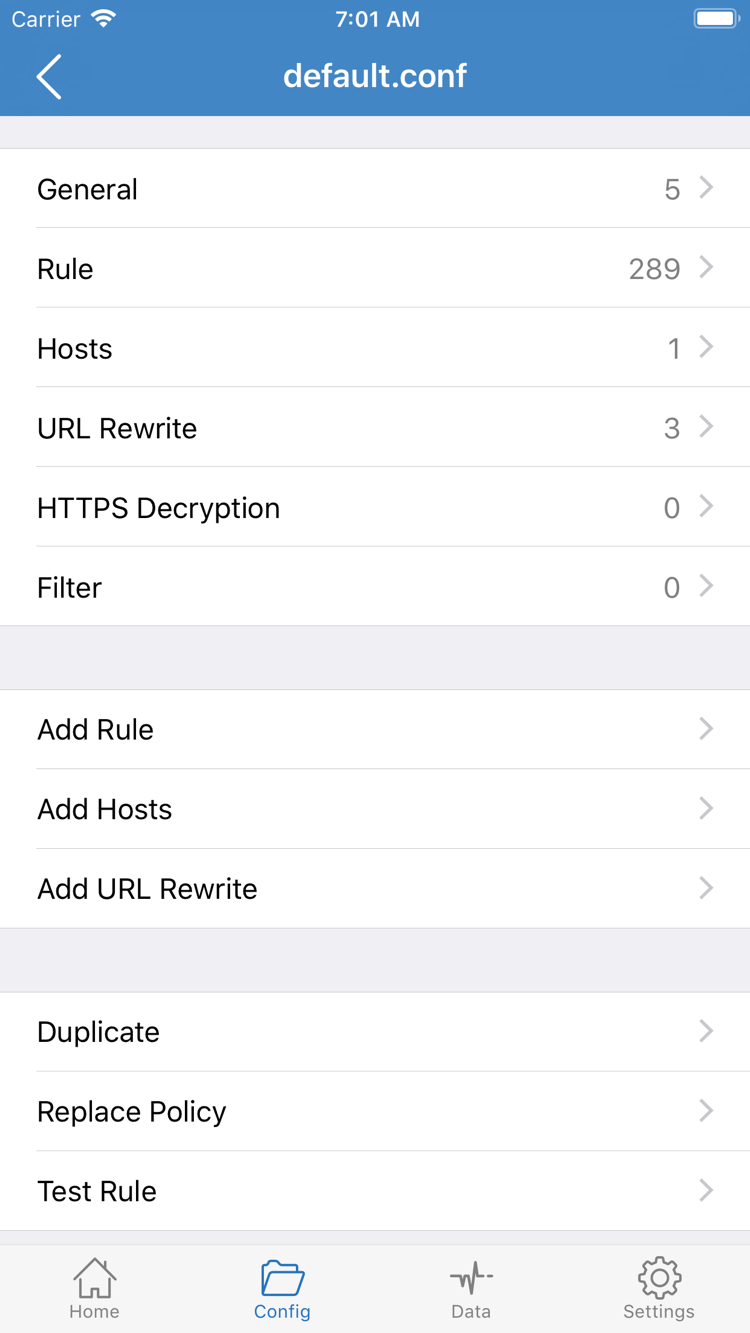
Config is for routing different requests according to rules. Open Config and confirm that the file you want to use is selected as the active configuration. Importing or saving a file, or opening it in the editor, doesn't necessarily make it active. Rules in a configuration file are matched in order, and the matching rule applies a policy such as PROXY, DIRECT, or REJECT. If a request doesn't go through a server, it may have matched DIRECT; that doesn't necessarily mean the app isn't working.
If you're not sure which file the current rules come from, don't add a large number of rules at random. Note the active configuration, then check the relevant Rule entries and their order. The snippet below illustrates the structure of a matching condition followed by a policy. It isn't a complete configuration, and you don't need to paste it over your existing file to connect for the first time.
[Rule]
DOMAIN-SUFFIX,example.com,PROXY
IP-CIDR,192.168.0.0/16,DIRECT
FINAL,DIRECT
In this example, requests matching the example.com suffix use PROXY, the specified local network address range uses DIRECT, and other requests are handled by FINAL. An earlier match can prevent later rules from being reached. The screenshot also shows the General, Hosts, URL Rewrite, and HTTPS Decryption sections. You don't need to edit each section for your first connection or enable HTTPS Decryption.
Proxy: Reduce Routing Variables During Testing
Proxy sends requests handled by this mode through the currently selected proxy path, making it useful for a brief test of whether a server is available. If a target fails with Config but works with Proxy, check the rules, policies, or related resolution settings. Proxy does not guarantee that every activity on the device will use that path, and it can't fix incorrect server credentials or service issues.
Direct: Connect Without the Selected Server
Direct is for cases where you want to connect directly. If a target depends on a path provided by your server, success or failure in Direct says nothing about that server. To establish a clear baseline, note the original mode, briefly test with Proxy, then return to the Config mode you need. After each switch, start a new request so you don't mistake the result of an existing connection for the result under the new mode.
Once you've chosen a mode, return to Home and check that Global Routing shows the expected option, then turn on the connection. For more on configuration sections and rule management, see Features and Settings. Keep your initial setup simple and use configuration files from a source you recognize.
STEP 03 / CONNECT
Turn On the Connection and Grant System Permission
Check the server and routing mode before responding to the first connection prompt.
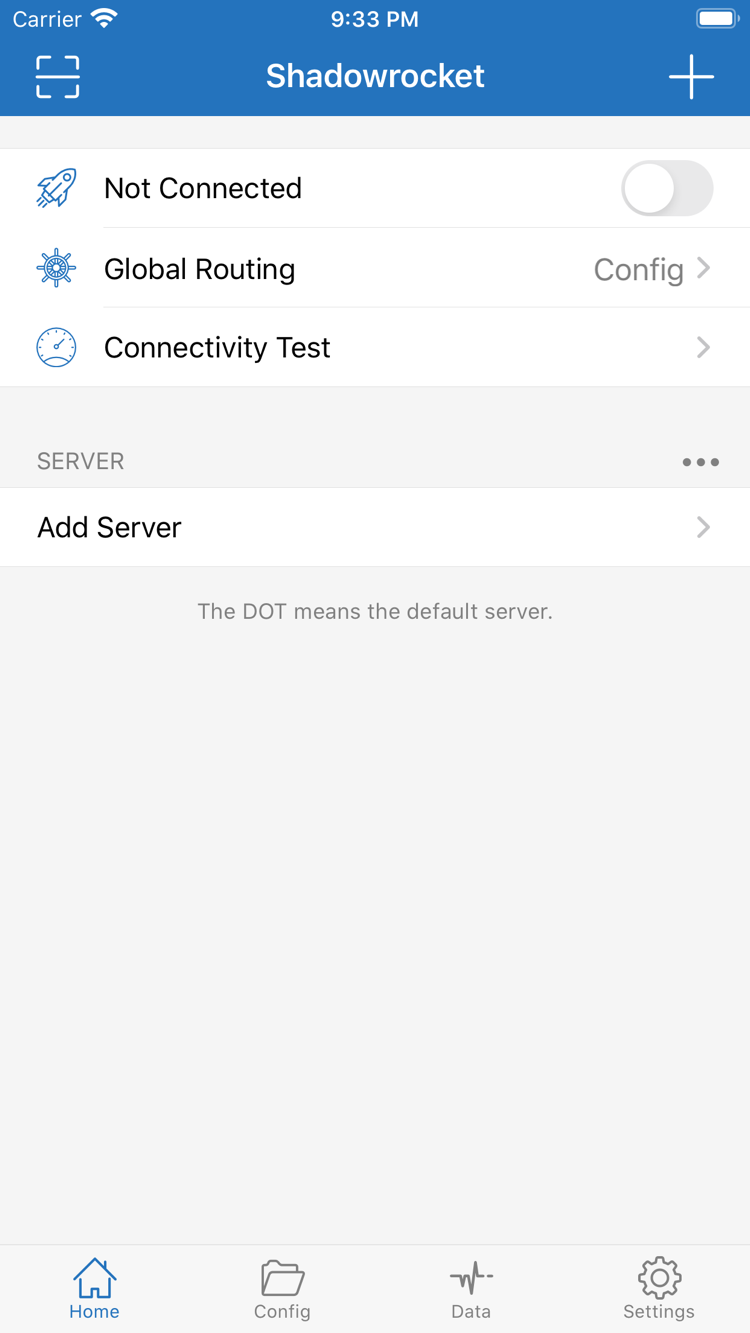
Return to Home, check the selected entry under SERVER, then review Global Routing. If you just edited the server, make sure the changes were saved. If you switched Config, confirm that the file you intend to test is active. Once you've checked both, turn on the connection switch at the top of Home. The official screenshot shows Not Connected before connection; it is not proof of a successful connection.
When you connect for the first time, the system may prompt Shadowrocket to add a VPN configuration. This permission is required for the app to establish a system network connection and is unrelated to buying the app again. Read the app name and requested action in the prompt. Once you've confirmed it was triggered by your connection attempt, allow it and authenticate as prompted. You may need your device passcode or another authentication method supported by the system; follow the prompt shown on your device.
If you accidentally tapped Cancel, you don't need to repeatedly delete the server. Return to Home and try connecting again to see whether the system shows the prompt again. If you still can't proceed, check in system settings whether a VPN configuration exists and whether device management restrictions prevent adding one. Devices managed by a school or workplace may be subject to restrictions; check the device's usage policies instead of repeatedly changing client fields.
After granting permission, return to Home and wait for the status to update. A system status showing an established VPN connection means the device-to-client network extension has started. It doesn't confirm that remote server authentication succeeded or that every service is reachable. The connection switch staying on is just the starting point for verification, not the end of the process.
If the switch quickly turns off again, note the error message and when it happened: before system permission, after permission, or when you started accessing a service. Troubleshoot the connection first; don't change DNS, Rule, and server settings all at once. If the switch stays on but access fails, leave it as is and use the next steps to compare test results with real requests.
The steps are the same on iPad: select a server, check Global Routing, turn on the switch, grant system permission, then verify access. Button placement may vary across screen layouts; use Home and the corresponding interface labels to find your way. Before your first successful connection, you can leave On Demand unset. Consider automatic connection conditions only after you can reliably connect manually.
STEP 04 / VERIFY
Verify Test Results and Real-World Access
Check server reachability, connection status, and the target request separately; don't rely on a single number.
Run Connectivity Test First
Tap Connectivity Test on Home and wait for the result. The test provides an initial indication under current network conditions; its measurement method is affected by settings such as Test Method in Settings. To compare results, keep the network and test method the same where possible. Otherwise, a change in the number may reflect different test conditions rather than a change in server performance.
A response or latency value means the relevant test received a result; it doesn't mean a real-world request will necessarily succeed. Low latency doesn't guarantee fast file transfers, which also depend on available bandwidth, server load, the target service, and transfer conditions. Conversely, a single timeout isn't enough to conclude that the entire connection is unusable. Consider the test method and real-world access together.
Then Make a Real Request
Keep the connection on, open a service you actually need and are authorized to access, then reload a page or perform a new action. Choose something with an observable result, such as a text page or an explicit refresh. Don't rely on images that have already loaded. If the app keeps an existing connection open, end that session and reopen it before testing again so cached content isn't mistaken for a new network request.
If you're using Config, also check whether the target matched the expected policy. A target that works directly in DIRECT doesn't prove the PROXY path is available. A target blocked by REJECT isn't necessarily a server issue either. Check the connection log for the target, rule, and policy. Focus on the log entry for the request you just made instead of drawing conclusions from older entries.
Use One-Variable Tests to Narrow It Down
When the result differs from what you expected, note your current network, server, Global Routing mode, and target, then change just one of them. For example, keep the server the same and compare the same target in Config and Proxy, or keep the mode the same and switch between two of your available servers. Don't change networks, edit DNS, update a subscription, and replace rules in a single test. If the problem goes away, you won't know what fixed it.
A successful check means the connection status is as expected, the target completes the requested action, and the request's route matches the current mode. Once you've checked these, switch back to the mode you plan to use day to day. Don't keep changing a verified configuration just to improve the latency number. If the issue persists, move on with a clear description of what failed.
STEP 05 / TROUBLESHOOT
Troubleshoot Based on What Failed
Restore basic network access first, then identify whether the issue is with importing, authentication, rules, or the target service.
Basic Network Access Is Unavailable
Turn off the client connection first and check whether your current Wi-Fi or cellular network can access ordinary websites and services. Public Wi-Fi may require you to sign in first, and system settings may restrict cellular data use. If the basic network isn't ready, subscription retrieval, server connections, and target access may all fail. Resolve that first, then return to Home and retry with the same server and mode.
Subscribe Update Fails or Shows No Entries
Check that the subscription URL is complete and still valid, and that your basic network can reach it. A subscription URL may differ from the URL for an account management page; a copied sign-in page URL usually won't return a server list. Don't submit URLs containing credentials to public testing sites. If needed, ask the support channel for your existing service to confirm the URL status and response format. Keep existing working entries until you've confirmed the update result, then decide whether to remove duplicates.
Server Is Listed, but Authentication or Handshake Fails
Open the entry's edit screen and compare Type, Host, Port, authentication details, and transport parameters one by one. When entering details manually, check capitalization, leading or trailing spaces, and similar-looking characters. For entries that use TLS, also check the device date and time and the server name specified in your details. Don't assume the other fields are correct just because you changed Password, and don't mask mismatched settings by changing Method at random or skipping certificate validation.
Proxy Works, but Some Targets Fail in Config
Start by checking the active Config, rule order, and matching policy. Find the request log for the failed target, then check whether an earlier rule sent it to DIRECT, REJECT, or an unexpected policy. If domain and address resolution differ, investigate using the actual log entries rather than replacing all DNS settings straight away. Keep a change only after confirming it worked, and revert other experimental changes to avoid accumulating unexplained configuration.
Connectivity Test Results Don't Match Real-World Access
Open Settings and check Test Method to make sure it suits your comparison. The test target and the service you want to use are different, so their results may differ. A slow response from a server to one test doesn't mean all real-world requests will be slow. If text pages work but a specific service doesn't, narrow the issue down to that service's connection type, availability, and transport requirements. Proxy, TCP, and UDP in Settings are related options; don't change them all just to experiment.
Connection Turns On or Off Automatically
Check whether On Demand is configured in Settings. On Demand triggers connections based on conditions; it isn't a network speed setting. When troubleshooting for the first time, note any existing conditions and temporarily turn off automatic triggers so you can establish a repeatable test by connecting manually from Home. Restore the conditions you need afterward. If another VPN configuration is active on the device, check which one is actually in use before interpreting the results.
Protect Your Information When Collecting Diagnostics
If you need to investigate further, check the Diagnostics features in Settings. Record when the issue occurred, the network type, selected mode, exact error message, and whether you can reproduce it. This is usually more useful than saying only that it doesn't work. Before sharing diagnostic information, redact credentials in subscription URLs, server passwords, authentication identifiers, and other private details. Keep the error type and necessary context, but don't share a complete sensitive configuration publicly.
Return to Verification After Troubleshooting
After each change, repeat the connection check and real-world access test. If the issue is caused by server-side status or permissions for an existing subscription, changes on the client can't replace a server-side fix; check with the support channel for your existing service. If only one target is affected, consider whether the target itself is temporarily unavailable instead of rebuilding your entire configuration.
That’s enough to wrap up your first use: keep one verified server, know which Global Routing mode is selected, confirm which Config is active, and learn how to stop the connection manually. To learn more, read the protocol reference and Features and Settings. To review the full sequence, return to the add and import steps on this page.